
It is one of the most widely repeated tips across tech forums and photography communities: “To keep your photos from getting compressed and blurry on WhatsApp, do not send them through the normal gallery picker—attach them as a Document instead!” In Telegram, the equivalent trick is tapping “Send without compression”.
It is undeniably effective at bypassing aggressive messaging compression algorithms. However, this workaround comes with an invisible, critical trade-off that rarely gets mentioned: when you send an image as a document, WhatsApp and Telegram treat the file as raw binary data. That means 100% of the original metadata—including exact satellite GPS coordinates, device serial numbers, lens configurations, and precise capture timestamps—is delivered directly into the recipient’s hands.
If you have ever used this trick to share photos of items you were selling on Craigslist, eBay, or Facebook Marketplace, sent contract photos or receipts to strangers, or shared high-res pictures of your kids in school groups, you may have inadvertently handed over your exact home address and daily routines to strangers.
In this guide, we break down the engineering reality behind WhatsApp and Telegram pipelines, explain what happens in each upload mode, and demonstrate how to safely share original-quality files without exposing private data.
Quick Reference: What Does Each Transfer Mode Expose?
To understand the privacy implications, look at what happens to your file depending on the exact button you press in the app:
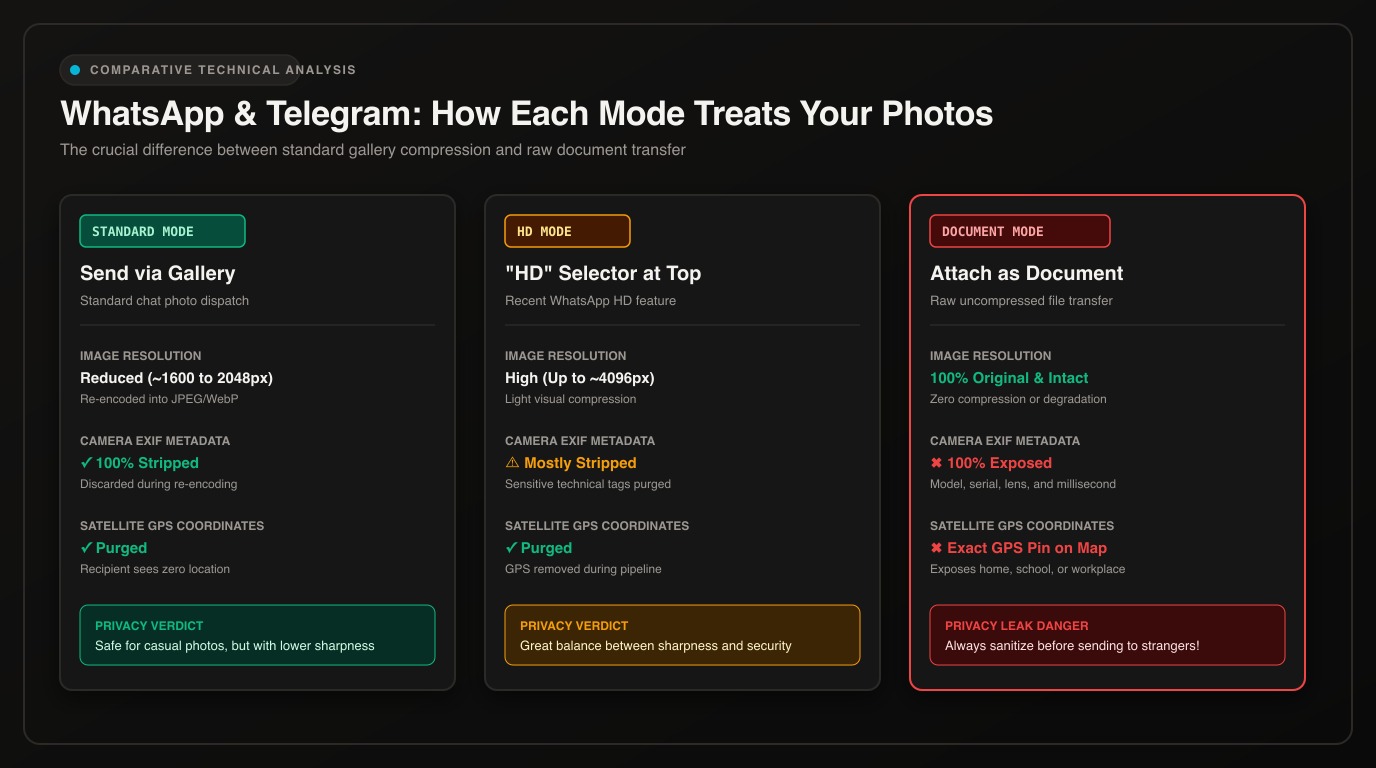
| Sharing Method | Resolution & Compression | EXIF & Camera Tags | GPS Coordinates | Privacy Risk |
|---|---|---|---|---|
| WhatsApp Standard (Gallery) | Scaled down to ~1600–2048px; re-encoded via JPEG/WebP | Stripped during re-encoding | Removed | Low |
| WhatsApp “HD” Toggle | Higher resolution (up to ~4096px); lighter compression | Mostly stripped (GPS and device IDs purged) | Removed | Low |
| WhatsApp as “Document” | Identical bit-for-bit (zero compression) | 100% Intact (ISO, shutter, camera serial) | 100% Intact (Latitude, Longitude, Altitude) | 🔴 Critical |
| Telegram Standard | Re-compressed into JPEG/WebP | Stripped | Removed | Low |
| Telegram “Without Compression” | Identical bit-for-bit (raw binary file) | 100% Intact | 100% Intact | 🔴 Critical |
💡 The Core Principle: Whenever an application promises to deliver a file “in original quality without altering a single bit”, it also means it will not sanitize your private metadata. File integrity guarantees that every trace of technical and geolocation tracking in the binary header remains intact.
Why Does WhatsApp Strip Metadata in Standard Mode?
Many people believe WhatsApp strips EXIF and geolocation data out of a benevolent focus on user privacy. While Meta frequently highlights end-to-end encryption in its messaging marketing, the primary driver for stripping EXIF data during standard uploads is server economics: bandwidth conservation, CDN caching efficiency, and fast delivery.
Modern smartphone cameras (such as the iPhone 16 Pro Max, Google Pixel 9 Pro, or Samsung Galaxy S24 Ultra) produce source files ranging from 5 MB to 30 MB, packed with 48 to 200 megapixels.
When you send a photo through WhatsApp’s standard gallery pipeline:
- The app decodes the pixel grid directly on your local device.
- It downscales the image to a standardized dimension (typically 1600 to 2048 pixels on the longest edge).
- It re-encodes the visual data into a fresh, highly compressed JPEG or WebP container, slashing file size down to 150 KB – 400 KB.
- Because the image is rebuilt entirely from raw pixels, the original EXIF header is discarded during encoding.
The recipient receives a lightweight preview that loads instantaneously over mobile networks, but the technical header containing your location is lost in transit.
What Actually Happens in “Document” Mode?
The “Document” feature was engineered to transmit spreadsheets, PDFs, ZIP archives, and source code—files where altering a single byte causes fatal corruption.
When you attach a picture via 📎 > Document > Choose from Photos:
- WhatsApp completely turns off its image re-encoding engine.
- The file is wrapped in a generic binary MIME stream (
application/octet-stream). - The messaging server moves the raw payload bit-for-bit without inspecting, decoding, or transforming its contents.
Consequently, the recipient does not merely receive sharp pixels—they receive the complete digital fingerprint recorded by your hardware when the shutter was pressed.
What Can a Recipient Extract from Your Document Photo?
If the recipient downloads the image on a computer or smartphone and inspects it in our Online Metadata Viewer (or simply right-clicks and opens Properties / Get Info in Windows or macOS), they can immediately extract:
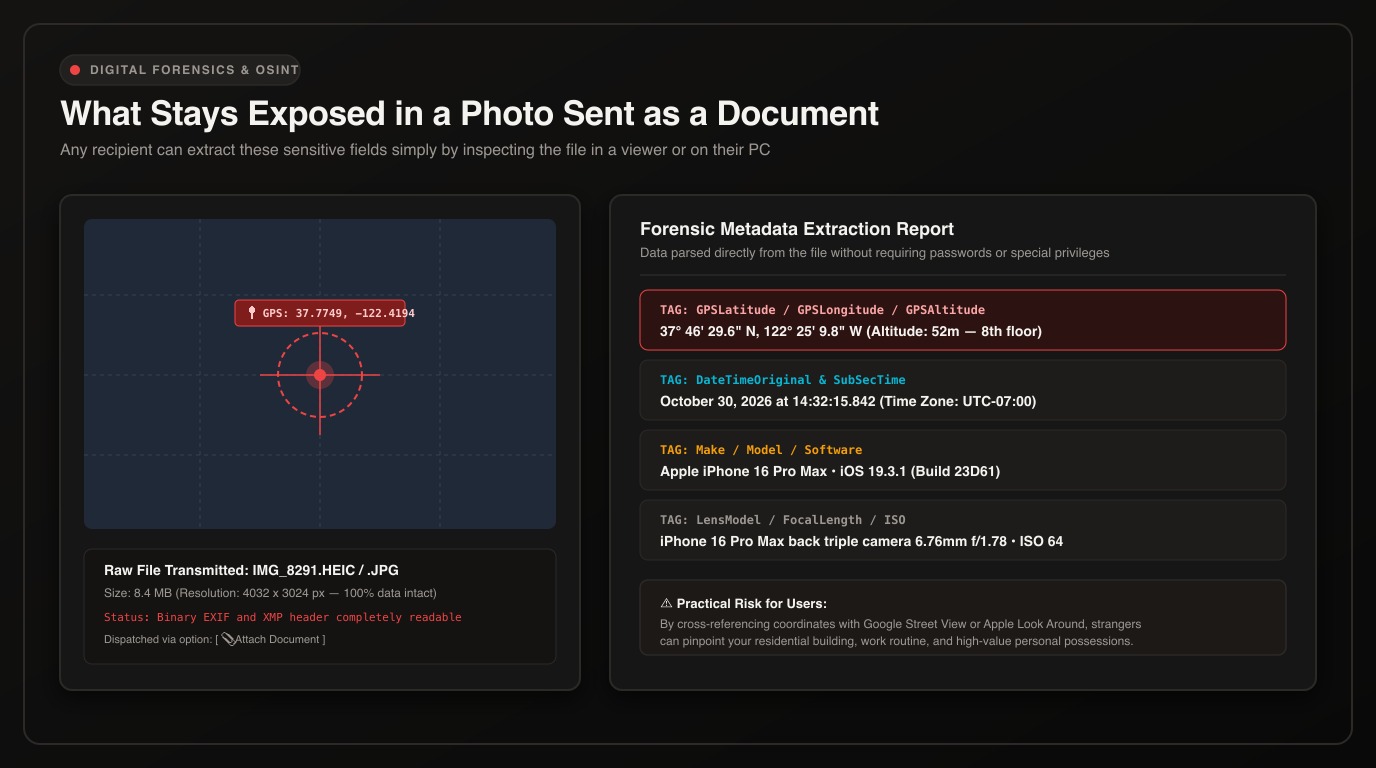
1. Pinpoint GPS Satellite Coordinates
- Decimal Latitude & Longitude: Precise satellite readings with accuracy down to a few meters. Pasting these numbers into Google Maps, Apple Maps, or OpenStreetMap reveals the exact building, house number, or parking spot.
- Altitude: In urban high-rises, elevation data combined with 3D terrain modeling can indicate the approximate floor or balcony level.
- Compass Heading (GPS Img Direction): Identifies the cardinal direction (North, East, South, West) the lens was facing at the moment of capture.
2. High-Precision Timestamps
- Sub-Second Capture Time: Records the exact second and millisecond the photo was snapped. Unlike chat timestamps, which reflect when the message was sent, EXIF timestamps preserve the historical moment of creation.
- Time Zone Offset (OffsetTime): Discloses the UTC time zone configuration of the photographer’s device.
3. Hardware Fingerprinting & Serial Numbers
- Device Make & Model: e.g.,
Apple iPhone 16 Pro MaxorSamsung Galaxy S24 Ultra. - Sensor Serial Number: Many DSLR, mirrorless, and flagship mobile camera sensors burn an internal hardware serial number into the file header. Forensic analysts and OSINT investigators use this to link supposedly anonymous photos back to the same physical camera.
- Software Build: Exact operating system and firmware versions.
4 Common Scenarios Where This Risk Causes Real Harm
Scenario 1: Peer-to-Peer Marketplaces (Craigslist, Facebook Marketplace, eBay)
You list a bicycle, sofa, or electronics for sale. A prospective buyer messages you:
“The photos on the app look pretty grainy. Could you send me uncompressed photos on WhatsApp as a document so I can inspect the condition?”
Unaware of the risk, the seller attaches 5 high-resolution photos taken inside their living room or garage as documents. Within seconds, the buyer extracts the GPS coordinates, discovers the seller’s home address, verifies that valuable goods are on premise, and targets the home for burglary or harassment.
Scenario 2: Family Photos in Neighborhood and School Groups
Parents who want to share school recital or birthday party pictures with friends and relatives often send files as documents so family members can “print them at full resolution”.
These document files frequently get forwarded to extended family, neighborhood channels, or community group chats. Every photo taken in the backyard or in front of the school gates embeds a permanent map of the child’s daily whereabouts.
Scenario 3: Real Estate, Leases, and Freelance Proofs
Sending uncompressed property walk-throughs, condition reports, or proof-of-work documentation exposes interior layouts, tenant move-in schedules, and vacant property hours to contractors and counterparties.
Scenario 4: Whistleblowing, Journalism, and Sensitive Evidence
Activists, witnesses, or employees who send evidentiary photos to investigative reporters or tip lines via document transfer without sanitization can inadvertently blow their own cover, exposing their physical safe houses or workspaces.
Is WhatsApp’s “HD” Mode Safe?
WhatsApp now features an HD toggle at the top of the photo selection screen. Many users assume that tapping HD does the same thing as sending a document, just through a faster shortcut.
The technical reality is different:
- The HD toggle still routes your photo through WhatsApp’s image compression pipeline.
- It permits a higher resolution ceiling (typically up to ~4096 pixels on the long edge, rather than the 1600–2048 pixel limit of standard mode) and uses a higher quality factor.
- Most importantly, the HD pipeline still purges GPS coordinates and sensitive device metadata.
For everyday casual sharing where you want crisp visual quality without exposing private telemetry, the HD toggle is substantially safer than attaching the image as a Document. However, HD mode still applies minor compression and color conversion. If you genuinely require 100% uncompromised visual clarity, you must sanitize the file before sending it as a document.
How to Check If Your Photos Contain Embedded GPS
Before sharing any image, you can check what hidden data is buried inside in seconds using our free Online Metadata Viewer:
- Open the Metadata Viewer in your desktop or mobile browser.
- Drag and drop your image anywhere onto the screen (or tap to browse).
- The tool parses the binary header locally in your browser—without sending your file over the internet.
- If GPS coordinates exist, an interactive map appears pinpointing the exact spot, along with full camera and device specs.
Safe Protocol: How to Share Maximum-Quality Photos Safely
If you need to deliver high-resolution photos without endangering your privacy, follow this tested 4-step workflow:
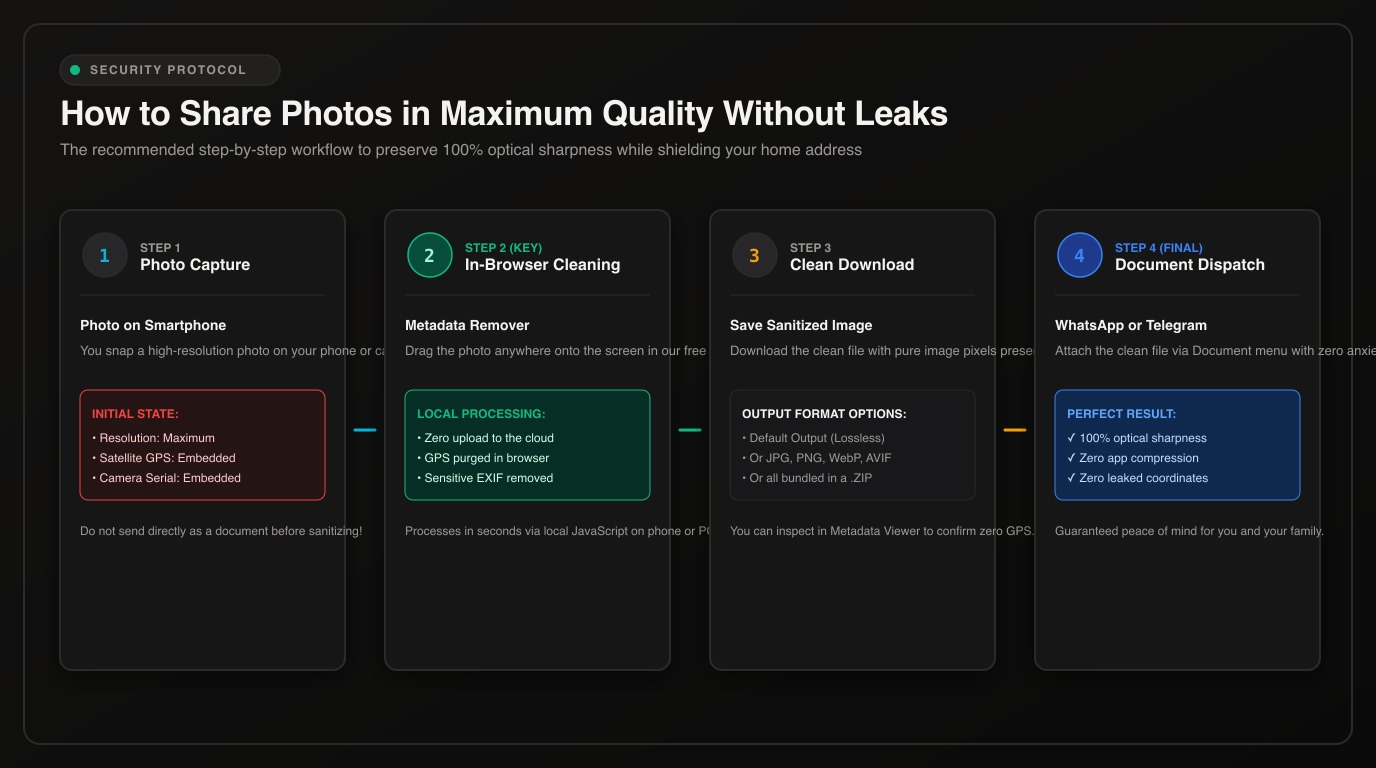
Step 1: Capture and Select Your Photos
Capture photos normally on your phone or camera. By default, flagship devices write factory-sharp resolutions alongside satellite geotags.
Step 2: Sanitize Locally via Metadata Remover
Before launching WhatsApp or Telegram:
- Open the free Metadata Remover homepage in your browser.
- Drop your photos anywhere onto the screen.
- The tool strips all GPS coordinates, camera serials, and tracking tags directly inside your browser using client-side JavaScript and WebAssembly (zero remote server upload).
- The visual matrix remains 100% uncompressed.
Step 3: Quick Inspection in the Metadata Viewer (Optional)
Drop the cleaned file into our Metadata Viewer to confirm that the GPS tab is empty and no sensitive fields remain.
Step 4: Dispatch via Document Attachment
Attach the sanitized file through 📎 > Document. The recipient receives a pristine, studio-sharp file—with zero trace of your residential address, school routes, or family locations.
Native Device Controls (and Their Limits)
In addition to browser-based sanitization, operating systems offer native toggles:
1. Strip Location via iOS Share Sheet (iPhone / iPad)
Apple lets you turn off location per individual share:
- Open the photo in Apple Photos.
- Tap the Share icon.
- Tap Options at the very top.
- Toggle Location off. Limitation: You must remember to repeat this toggle every time. It also keeps camera make, model, lens specs, and software builds.
2. Disable Camera Geotagging on Android
To prevent future photos from recording location:
- Open your native Android Camera app.
- Tap the Settings gear icon.
- Toggle off Save location, Location tags, or Geotags. Limitation: This only applies to future shots. Previously taken photos retain their historic GPS coordinates.
Frequently Asked Questions (FAQ)
Does WhatsApp notify the sender if their photo’s GPS is extracted?
No. WhatsApp has no mechanism to detect or notify users when metadata is read. Once a file is transferred as a document, it lives on the recipient’s storage drive as an independent binary file.
Does taking a screenshot remove the photo’s GPS?
Yes. Taking a screenshot creates an entirely new screen buffer file that captures only the displayed pixels, without inheriting the EXIF tags of the original photo. However, screenshots severely downscale image resolution and destroy fine detail.
Does Telegram also leak GPS when sending without compression?
Yes. Telegram’s “Send without compression” and file-sharing options bypass transcoding identically to WhatsApp’s Document mode. The raw byte stream is sent uninspected, preserving all embedded GPS and device tags.
Does the online metadata cleaner keep copies of my pictures?
No. Our Metadata Remover and Metadata Viewer run completely client-side in your own browser using local WebAssembly. Your files are never uploaded, stored, or processed on any remote server.
Key Takeaways
Sending photos as documents on WhatsApp and Telegram is an invaluable technique for preserving maximum image fidelity, but it turns off the safety net that ordinarily purges tracking data.
Whenever you bypass messaging compression, remember that the uncompressed binary stream contains everything your smartphone’s sensors recorded. Before sending photos of your home, personal belongings, or family members as documents, always clean your metadata first with a trusted client-side tool. High resolution should never come at the expense of your personal safety.
Protect Your Privacy: Strip Hidden Metadata in Seconds
Do not leave your GPS coordinates, device history, or author tags exposed. Clean your JPEG, PNG, WebP, HEIC, and PDF files directly inside your browser without uploading to external servers.